
In brief:
- Three free attendance sheet templates, ready to use: a daily sign-in sheet, a weekly tracker and a monthly tracker, in Excel, Google Sheets (make a copy), PDF and Word.
- The Excel and Google Sheets versions count sessions attended, absences and late arrivals on their own, colour the P / A / L / E codes and work out an attendance rate.
- A template is only as good as its fields: session title and date, facilitator, participant identity, hours actually attended and one signature per half day.
- Past a few sessions a week, the spreadsheet becomes the bottleneck. Digital attendance produces the same signed, time-stamped record without a file to chase.
Pick the layout that matches how your sessions run, then open it in the tool your team already uses. No sign-up, no email gate.
| Template | Best for | Excel | Google Sheets | Word | |
|---|---|---|---|---|---|
| Daily sign-in sheet One row per participant, time in, time out, signature | One-day workshops, classes, meetings, in-person sign-in | Download .xlsx | Make a copy | Download .pdf | Download .docx |
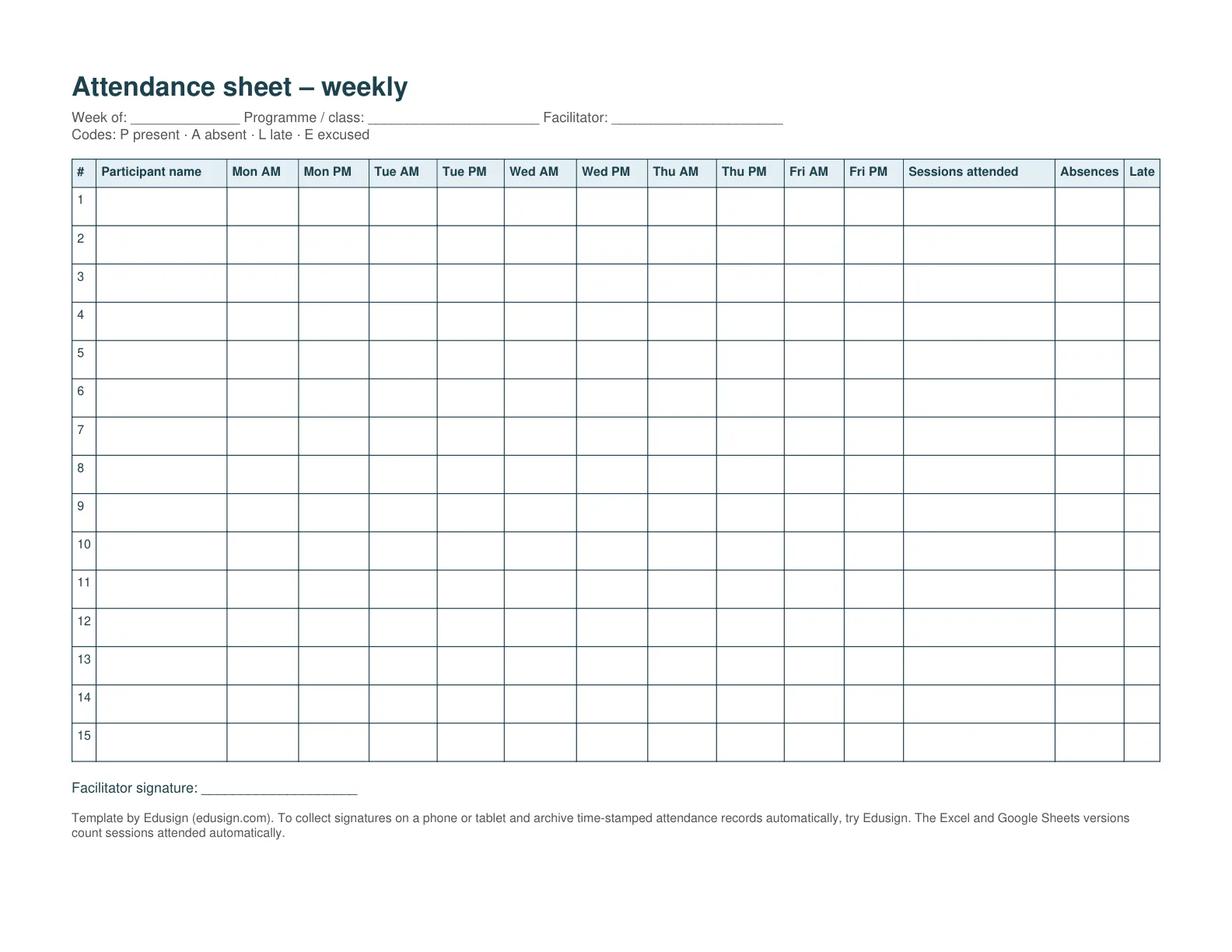
| Weekly attendance tracker Monday to Friday, morning and afternoon, automatic totals | Courses and programmes that run over several days a week | Download .xlsx | Make a copy | Download .pdf | n/a |
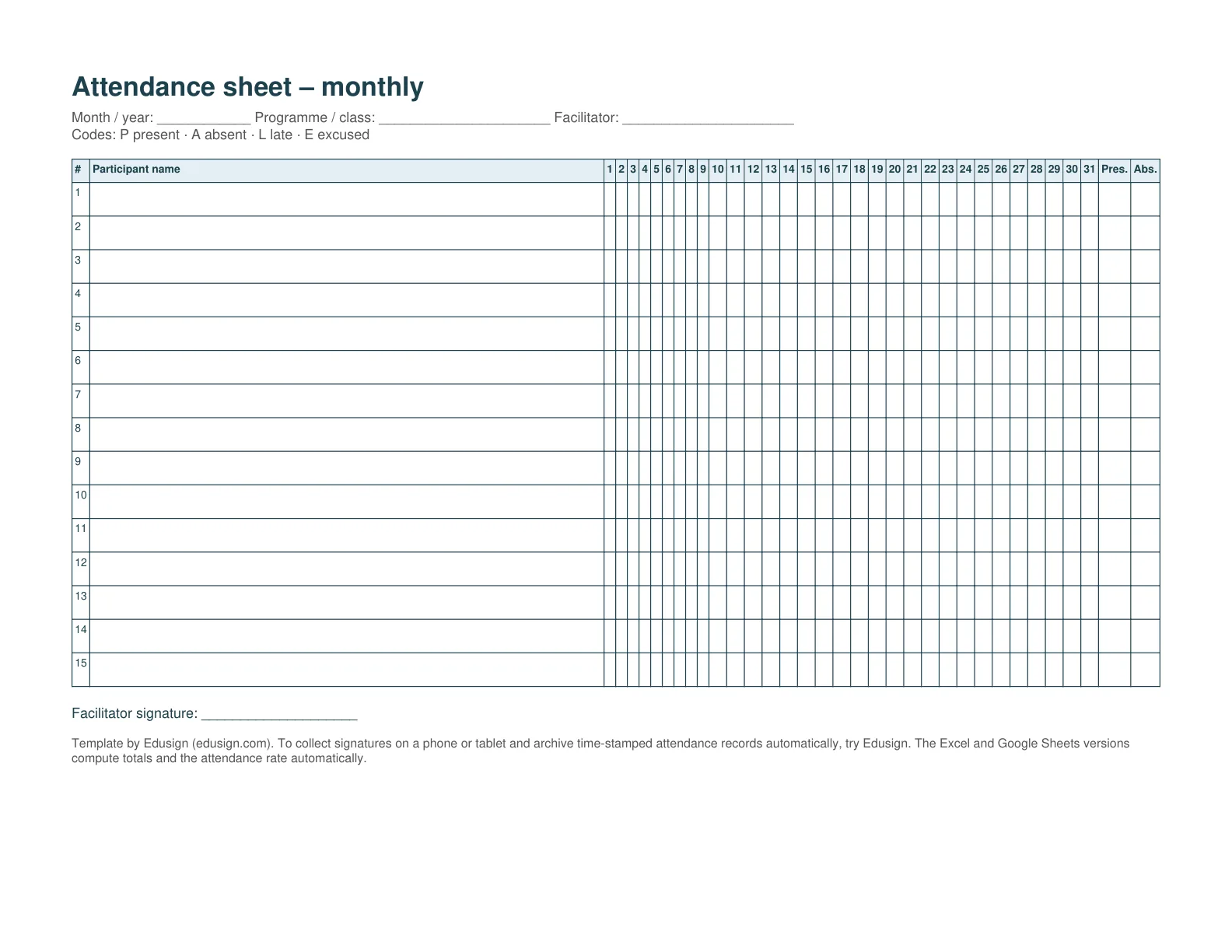
| Monthly attendance tracker Days 1 to 31, totals by status, attendance rate | Long programmes, apprenticeships, recurring groups | Download .xlsx | Make a copy | Download .pdf | n/a |
The Google Sheets link opens one file with the three layouts as tabs. Click Make a copy to get your own editable version in your Drive. The Excel files use plain formulas (COUNTIF, SUM) and open in LibreOffice and Numbers as well.
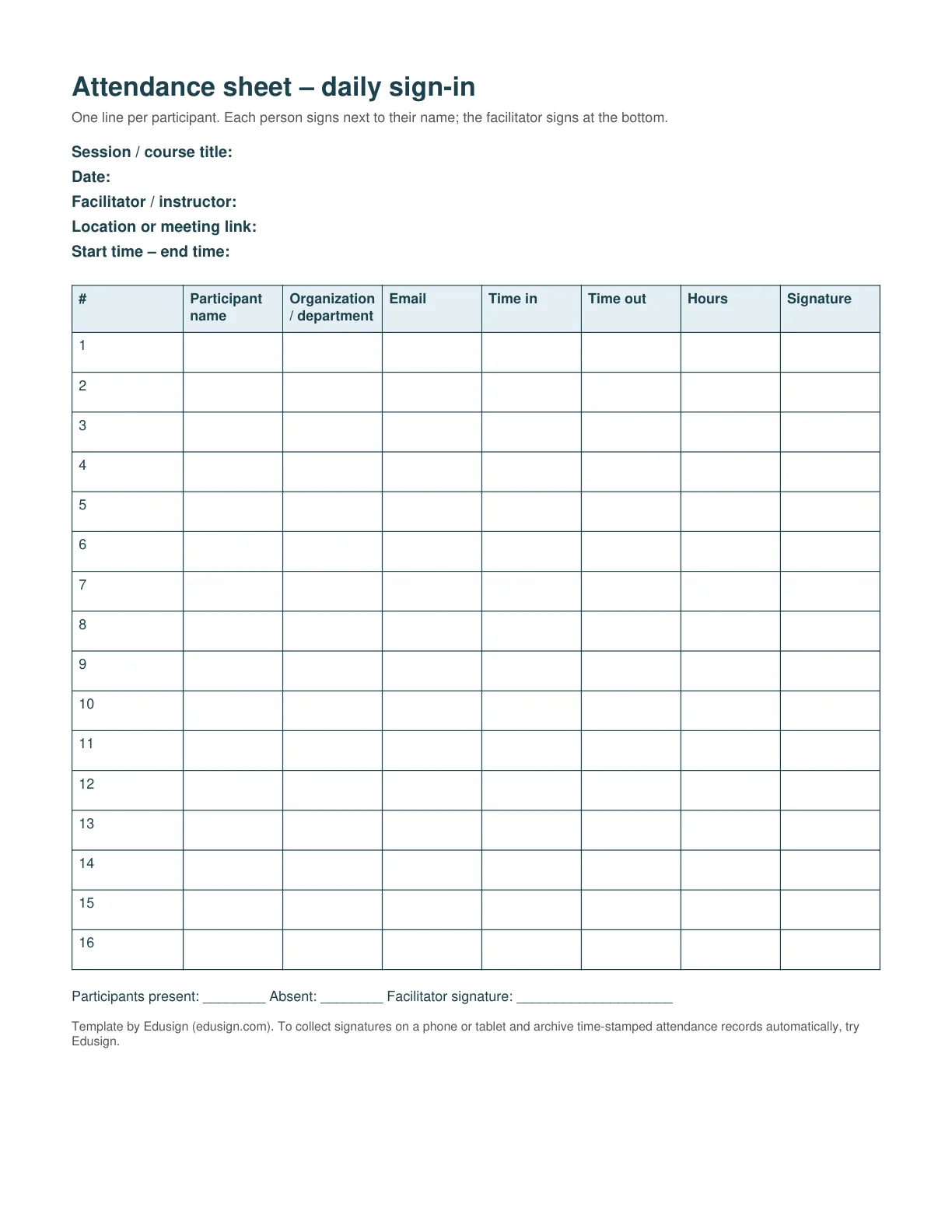
An attendance sheet has one job: showing, later, that a named person was in a named session for a given number of hours. Everything on the template serves that. Leave a field out and the record is harder to defend when a client, a funder or an auditor asks for it.
| Field category | Information to record | What it is for |
|---|---|---|
| Session | Title, date, start and end time, room or meeting link, facilitator name | Tying the proof to one identified session |
| Participant | Full name, company or department, email address | Identifying the person without ambiguity and following up |
| Time | Time in, time out, hours actually attended | Justifying the hours invoiced, funded or credited |
| Verification | Participant signature, facilitator signature, per half day for multi-day sessions | Making the record hold up as evidence |
| Status | Present, absent, late or excused (P / A / L / E), with a note | Spotting repeated absences before they become a problem |
Two details are easy to forget. First, the facilitator's signature: it confirms the sheet was closed by someone accountable. Second, the time slot: "present on Tuesday" is weaker than "present from 9:00 to 12:30 on Tuesday 4 March", which is what funders and compliance reviews actually check.
The three layouts record the same thing at different scales. Choose by how long the group stays together, not by habit.
If you would rather build your own, the structure below is the one used in the weekly and monthly templates. It takes about fifteen minutes the first time.
P,A,L,E. Typos disappear and the totals stay reliable.=COUNTIF(C7:L7,"P"). Same formula with "A", "L" and "E" for the other totals. For an attendance rate: =Present/(Present+Absent), formatted as a percentage.Google Sheets wins as soon as several people need the same file at the same time: the facilitator on a tablet in the room, the coordinator at their desk, the registry at month end. Start from the template copy, or rebuild it with the same steps as in Excel: data validation is under Data › Data validation, conditional formatting under Format › Conditional formatting, and the COUNTIF formulas are identical.
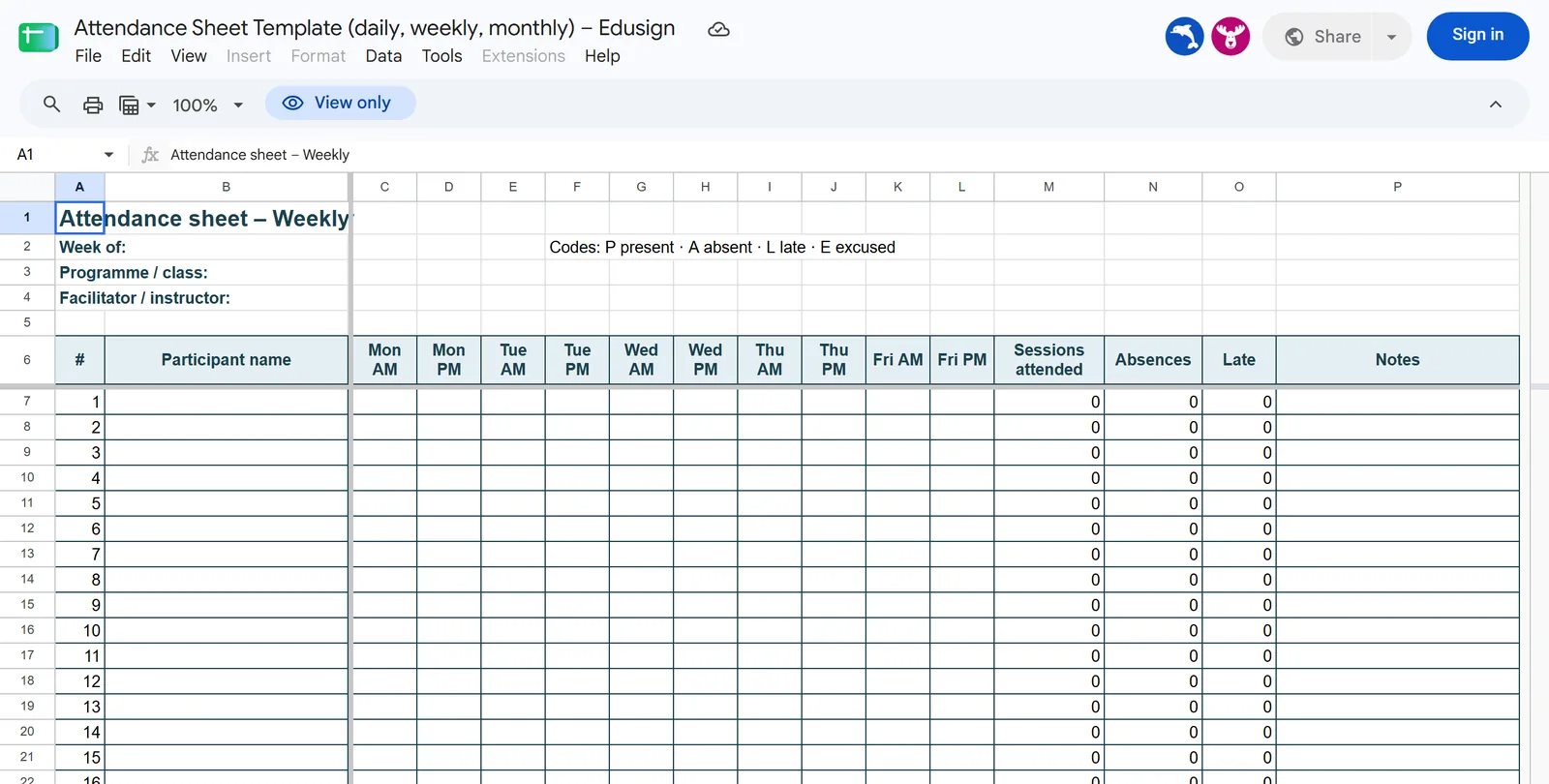
Share the copy with "Editor" access only to the people who record attendance, and "Viewer" access to everyone else. One caveat if you attach a Google Form so participants register themselves: a form proves that a name was typed, not that a person was in the room. Keep a signed sheet, or a check-in that identifies the participant, whenever attendance has to hold up as evidence.
Word is the right tool when the sheet will be printed and signed with a pen. Insert › Table with seven columns: number, participant name, company or department, time in, time out, hours, signature. Give the signature column the most width and set the row height to at least 0.8 cm so there is room to sign. Add the session title, date, facilitator and location above the table, and a line for the facilitator's signature below it. The Word template above is exactly that, formatted for US Letter paper.
For a printable version that cannot be edited after the session, export the finished sheet to PDF (File › Save As › PDF), or use the PDF sign-in sheet directly.
Pre-fill the names before the room opens. If participants registered in advance, their names and companies should already be on the sheet: no queue at the door, no illegible handwriting to decode later.
Give the sheet to one named person. A sheet passed from hand to hand comes back incomplete, with signatures against the wrong line. Someone stationed at the door records the real arrival time and marks absences as they happen.
Close the sheet the same day. A paper sheet scanned in the evening is archived; the same sheet left in a bag is lost. Store the signed original with the session file, and keep the spreadsheet as the index, not as the proof.
These templates solve the layout. They do not solve the volume. From a few sessions a week, the file becomes the bottleneck: several versions in circulation, missing signatures, consolidation on Friday evening, and a signature that is hard to tie to a time slot.
That is the point where digital attendance earns its place: the sheet is generated from the session, participants sign on their phone or on the facilitator's tablet, in-person check-in works by QR code, link or NFC badge, and the signed, time-stamped record is archived without anyone scanning anything. Absence alerts reach the organiser during the session rather than at the end of the month. Teams that run sessions across several sites will find the matching setup on the Edusign for enterprise page.
The session (title, date, start and end time, location, facilitator), the participant (full name, company or department, email), the time actually attended (time in, time out, hours) and a verification (participant signature, facilitator signature). For multi-day sessions, add a status per half day: present, absent, late or excused.
Start with a table of seven columns: number, participant name, company or department, time in, time out, hours, signature. Add the session title, date and facilitator above it, a line for the facilitator's signature below it, and print it. The daily sign-in template on this page is exactly that, in Excel, PDF and Word.
Put one participant per row and one session (or day) per column. Restrict the session cells to the codes P, A, L and E with Data Validation, count them with COUNTIF (for example =COUNTIF(C7:L7,"P")), colour them with Conditional Formatting, freeze the header row and the name column, then save the file as a template. The weekly and monthly templates above already do this.
Insert a table (Insert › Table) with a column for the number, the name, the company or department, time in, time out, hours and the signature. Widen the signature column, set the row height to at least 0.8 cm, add the session details above the table and the facilitator's signature line below. Export to PDF once the sheet is final so it cannot be edited afterwards.
A spreadsheet proves that a row was filled in. What makes attendance hold up is the signature attached to an identified participant, an identified session and a recorded time slot. If the spreadsheet is your only record, keep a signed sheet alongside it, or use a check-in method that identifies the participant.
That is the safest rule, and the one most funders and compliance reviews expect. One signature per half day shows that the person was there for the morning and the afternoon, not just at some point in the day. The weekly and monthly templates have one column per half day for that reason.